If you're like most import and logistics teams, Terminal49 isn't the only place you manage data.
You've got an ERP or TMS with order and customer IDs, finance systems with invoice numbers, and shared spreadsheets with notes, exceptions, and "next steps." Until now, tying all of that back to live container visibility meant copying and pasting between systems, or maintaining a "tracking spreadsheet" on the side.
Custom Fields changes that.
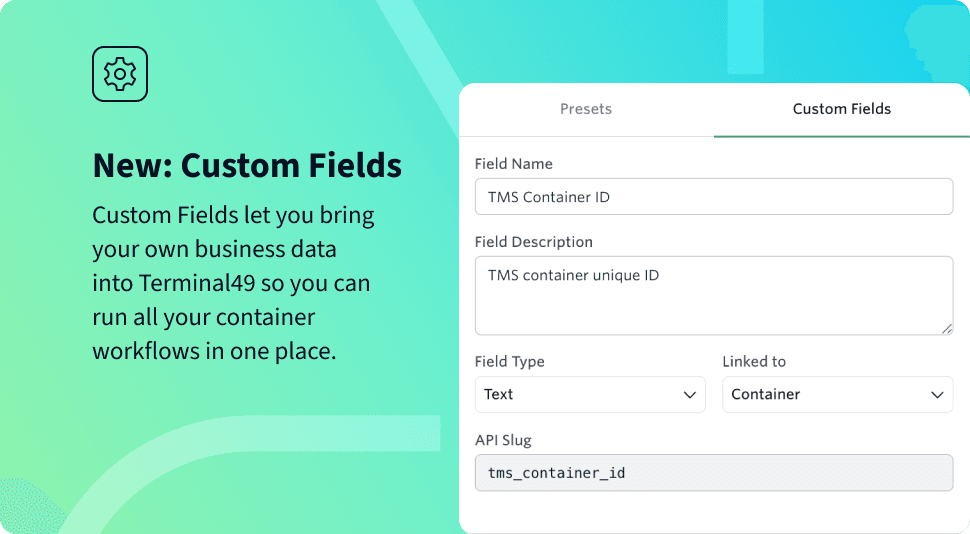
Custom Fields let you add your own business data directly onto shipments and containers in Terminal49—so you can keep your workflows in one place, and your other systems in sync.
Custom Fields is now available in beta. If you'd like it turned on for your account, reach out to your Terminal49 Customer Success Manager or contact Support.
Why we built custom fields
We kept hearing two recurring themes from customers:
1. "I need to keep my ERP/TMS and Terminal49 in sync."
Many teams rely on external system IDs to reconcile data—ERP shipment IDs, TMS load IDs, customer or supplier reference numbers, and internal project codes. Until now, those IDs lived in separate spreadsheets or systems, and matching them to Terminal49 data took extra steps.
With Custom Fields: You can store ERP/TMS IDs directly on shipments and containers. When you upload a tracking CSV, call the API to create tracking, export data from Terminal49, or receive webhook updates, those IDs are included right alongside your visibility data, ready for matching in your downstream systems. No more lookup tables. No more "which container is this, again?" moments.
2. "We still manage our workflows in spreadsheets."
Terminal49 is great for tracking containers. But many teams also have a spreadsheet that tracks exceptions ("this one has a customs hold"), issues and next steps ("need docs from supplier", "reroute to alternate warehouse"), and ownership ("who's on point for this container?"). Those spreadsheets require manual updates, get out of sync with reality, and live in email threads and shared drives.
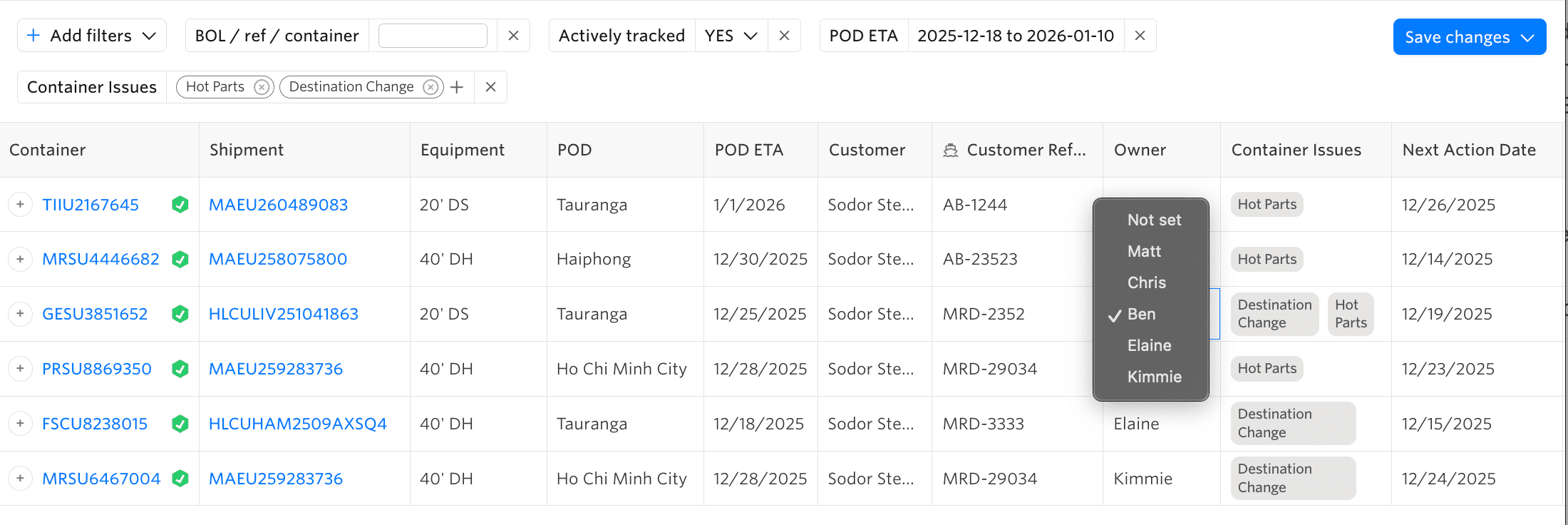
With Custom Fields: You can add workflow fields directly into Terminal49—Container issues (multi-select), Owner (select from a list of teammates), Next action date, Priority. You can build Container Views that show only the containers that need attention, and share views with colleagues so everyone works from the same live list, powered by Terminal49's tracking data. Spreadsheets become the exception, not the default.
How custom fields work
Shipment vs. Container: where your data lives
When you create a Custom Field, you choose whether it belongs to:
- Shipments – one value per shipment, shared by all containers on that shipment. Great for: customer reference numbers, PO groupings, internal shipment IDs.
- Containers – one value per container. Great for: issues, warehouse doors, lane-specific status, handling notes.
This helps you model your real-world processes without duplicating data across rows.
Rich data types (not just text)
Many tools only let you create free-text fields. That quickly becomes messy and hard to filter.
Custom Fields in Terminal49 support:
- Text – notes, references, descriptions
- Number – quantities, dollar amounts, scores
- Date – key dates like "next action date"
- Date & Time – precise cutoffs or appointments
- True/False – simple flags such as "needs inspection"
- Select – choose one option from a controlled list
- Multi-select – choose multiple applicable options
This structure means cleaner data entry, easier filtering, and less guesswork when multiple people use the same field.
Where you'll see custom fields in Terminal49
1. Settings → Custom Fields
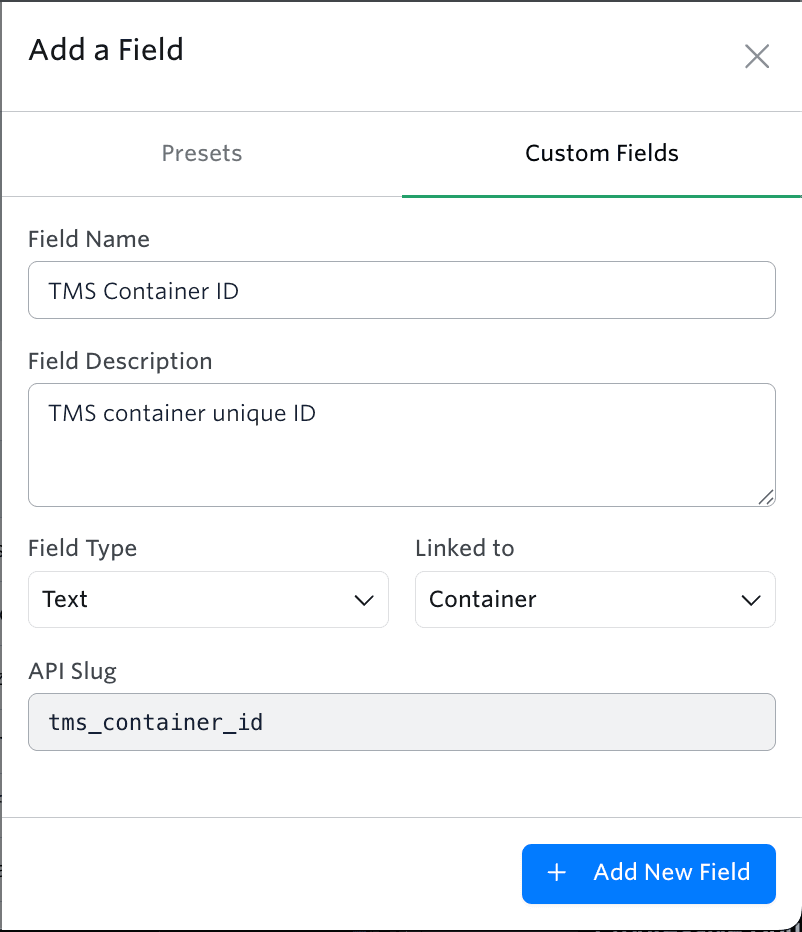
This is where admins define the fields available to your team. You can create new fields using presets or fully custom configs, choose whether each field is linked to shipments or containers, pick the right data type, and set options for select/multi-select fields. Once set up, these fields become available throughout the app, in imports, and via API.
2. Container Dashboard
This is where Custom Fields really come to life for day-to-day operations.
Add Custom Fields as Columns: Customize your columns to include your new fields under Additional Shipment Fields and Additional Container Fields. Save views to reuse them later (e.g. "Containers with issues", "Hot parts arriving this week").
Edit Inline: Need to update data as new information comes in? Click directly into a Custom Field cell, edit the value, and click away—changes are auto-saved. Propagation rules are intuitive: Container fields update only that container, while Shipment fields update all rows for that shipment.
Filter by Custom Fields: Turn your Custom Fields into powerful workflows with filtering. Filter on Container issues to see all shipments with Customs hold or Destination change, filter on Next action date to see what needs attention this week, or filter on Owner to see each person's workload. For multi-select fields, filters behave as "any of these values," so it's easy to catch all containers that match at least one issue.
Export & Share: Any Custom Fields in your view are included in CSV exports from the Container Dashboard and are visible in Shared Views you send to teammates or partners. Instead of emailing a static spreadsheet, you can share a live view and let others refresh it whenever they need the latest status.
3. Shipment & Container Detail Pages
On the detail pages, Custom Fields appear in dedicated sections: Shipment-linked fields show near the top of the shipment page, while container-linked fields show in the container details area. You can edit them inline here as well, with changes following the same logic: Shipment fields update all containers for that shipment, while container fields update one container at a time.
Getting data in (and out): CSV, email & API
At the time of tracking
Most teams want Custom Fields filled in as early as possible—ideally when creating tracking. You can send Custom Field values when you upload CSV files through the Track page, email CSVs to Terminal49 (if that's part of your process), or use the API to submit tracking requests. Your Customer Success Manager can provide examples of the correct column headers or JSON structure for your fields so everything aligns cleanly.
Via API & webhooks
If you integrate with Terminal49, Custom Fields can be included when you create tracking via API. They're returned in GET responses for shipments and containers, and they're present in webhook payloads, so your other systems always receive your own IDs and workflow data alongside events and milestones. This makes it much easier to keep Terminal49, your ERP/TMS, and your internal tools all speaking the same language.
What you can build with Custom Fields
Here are a few practical patterns we're already seeing:
Workflow 1: Exceptions board inside Terminal49
Create fields like Container issues (multi-select), Owner (select), and Next action date (date). Then add these as columns to a view, filter for containers with issues and a next action date up to today, and save and share this as your "Exception Board" for the team.
Workflow 2: ERP/TMS reconciliation
Create fields like ERP shipment ID, TMS load ID, and Customer reference. Then include them in your tracking uploads or API calls, use exports or webhooks to pass back Terminal49 events tagged with these IDs, and automatically reconcile and update orders or loads in your ERP/TMS.
- ERP shipment ID
- TMS load ID
- Customer reference
Then:
- Include them in your tracking uploads or API calls.
- Use exports or webhooks to pass back Terminal49 events tagged with these IDs.
- Reconcile and update orders or loads in your ERP/TMS automatically.
Workflow 3: Customer or lane-specific handling
Create container-level fields such as:
- Service level
- Warehouse dock
- Temperature requirement
Use them to:
- Build views by service level or lane.
- Share custom views with specific teams (e.g. warehouse, customer service).
Availability & how to join the Beta
Custom Fields is currently available as a beta feature.
During the beta:
- There's no additional charge to participate.
- We're actively collecting feedback to refine data types and UX, prioritize features like bulk updates for shipment-level fields, and shape how Custom Fields fit into our long-term plans and pricing.
If you:
- Are maintaining tracking spreadsheets today, or
- Need to sync Terminal49 more tightly with your ERP/TMS, or
- Want live, shared "boards" instead of static exports
…you're a great candidate for the beta.
👉 Interested in getting Custom Fields? Reach out to your Terminal49 Customer Success Manager or email our Support team, and we'll walk you through setup and best practices for your specific workflows.
Key Takeaways
- Eliminate manual spreadsheets by adding your own business data directly to shipments and containers with Terminal49 Custom Fields.
- Sync Terminal49 seamlessly with your ERP, TMS, and internal tools using custom IDs and workflow fields included in exports and APIs.
- Streamline exception management and team collaboration by building live, filterable boards inside Terminal49 instead of static spreadsheets.
- Customize data capture with rich field types—text, numbers, dates, select lists—tailored to your real-world logistics processes.
- Join the Custom Fields beta at no extra cost to simplify workflows and keep all stakeholders working from the same live data.