> ## Documentation Index
> Fetch the complete documentation index at: https://terminal49.com/docs/llms.txt
> Use this file to discover all available pages before exploring further.
# Track Shipments and Containers
> Create tracking requests for bill of lading, booking, and container numbers in the Terminal49 API and start receiving shipment milestone updates.
In this tutorial, you will create a tracking request. A tracking request tells Terminal49 which shipment or container to monitor.
Each tracking request needs two values:
* A Bill of Lading (BOL), booking number, or container number from the carrier.
* The carrier Standard Carrier Alpha Code (SCAC). You can see a complete list of supported SCACs in the [carrier coverage matrix](/api-docs/useful-info/api-data-sources-availability#supported-ocean-carriers).
**Don't know the SCAC?** Use the [Infer Tracking
Number](/api-docs/in-depth-guides/auto-detect-carrier) endpoint (also called
Auto-Detect Carrier) to identify the shipping line from your tracking number.
## Choose a tracking number
**Supported numbers**
1. Master Bill of Lading number from the carrier (recommended)
2. Booking number from the carrier
3. Container number
Container number tracking support varies by ocean carrier. Check the [carrier
coverage
matrix](/api-docs/useful-info/api-data-sources-availability#supported-ocean-carriers)
to see which carriers support container number tracking.
**Unsupported numbers**
* House Bill of Lading (HBOL) numbers
* Customs entry numbers
* Seal numbers
* Internally generated numbers, such as purchase order numbers or customer reference numbers
## Authentication
Every request in this tutorial sends your API key in the `Authorization` header:
```http theme={null}
Authorization: Token YOUR_API_KEY
```
If you don't have an API key yet, get one from the [developer portal](https://app.terminal49.com/developers/api-keys) as described in [Start Here](/api-docs/getting-started/start-here).
## Create a tracking request
Replace `YOUR_API_KEY`, `REQUEST_NUMBER`, and `SCAC` before running this example. The request number must be a master bill of lading, booking, or container number from the carrier.
```bash cURL theme={null}
curl -X POST "https://api.terminal49.com/v2/tracking_requests" \
-H "Content-Type: application/vnd.api+json" \
-H "Authorization: Token YOUR_API_KEY" \
-d '{
"data": {
"type": "tracking_request",
"attributes": {
"request_type": "bill_of_lading",
"request_number": "REQUEST_NUMBER",
"scac": "SCAC"
}
}
}'
```
```javascript JavaScript theme={null}
const response = await fetch("https://api.terminal49.com/v2/tracking_requests", {
method: "POST",
headers: {
"Content-Type": "application/vnd.api+json",
"Authorization": "Token YOUR_API_KEY"
},
body: JSON.stringify({
data: {
type: "tracking_request",
attributes: {
request_type: "bill_of_lading",
request_number: "REQUEST_NUMBER",
scac: "SCAC"
}
}
})
});
console.log(await response.json());
```
Rate limiting: You can create up to 100 tracking requests per minute.
## Anatomy of a tracking request response
The response confirms that Terminal49 accepted the request. A new request usually starts with `status: "pending"` while Terminal49 checks the carrier.
```json theme={null}
{
"data": {
"id": "478cd7c4-a603-4bdf-84d5-3341c37c43a3",
"type": "tracking_request",
"attributes": {
"request_number": "xxxxxx",
"request_type": "bill_of_lading",
"scac": "MAEU",
"ref_numbers": [],
"created_at": "2020-09-17T16:13:30Z",
"updated_at": "2020-09-17T17:13:30Z",
"status": "pending",
"failed_reason": null,
"is_retrying": false,
"retry_count": null
},
"relationships": {
"tracked_object": {
"data": null
}
},
"links": {
"self": "/v2/tracking_requests/478cd7c4-a603-4bdf-84d5-3341c37c43a3"
}
}
}
```
Note that if you try to track the same shipment again, you will receive an error like this:
```json theme={null}
{
"errors": [
{
"status": "422",
"source": {
"pointer": "/data/attributes/request_number"
},
"title": "Unprocessable Entity",
"detail": "Request number 'xxxxxxx' with scac 'MAEU' already exists in a tracking_request with a pending or created status",
"code": "duplicate"
}
]
}
```
**Why so much JSON? (A note on JSON:API)**
The Terminal49 API is JSON:API compliant. JSON:API libraries can translate the response into a full object model compatible with an ORM, which is powerful but produces larger, more structured payloads. If you parse JSON directly, this can feel verbose. For production use, consider adopting a [JSON:API client library](https://jsonapi.org/implementations/#client-libraries) to get the most out of the format. For this tutorial, you will work with the data directly.
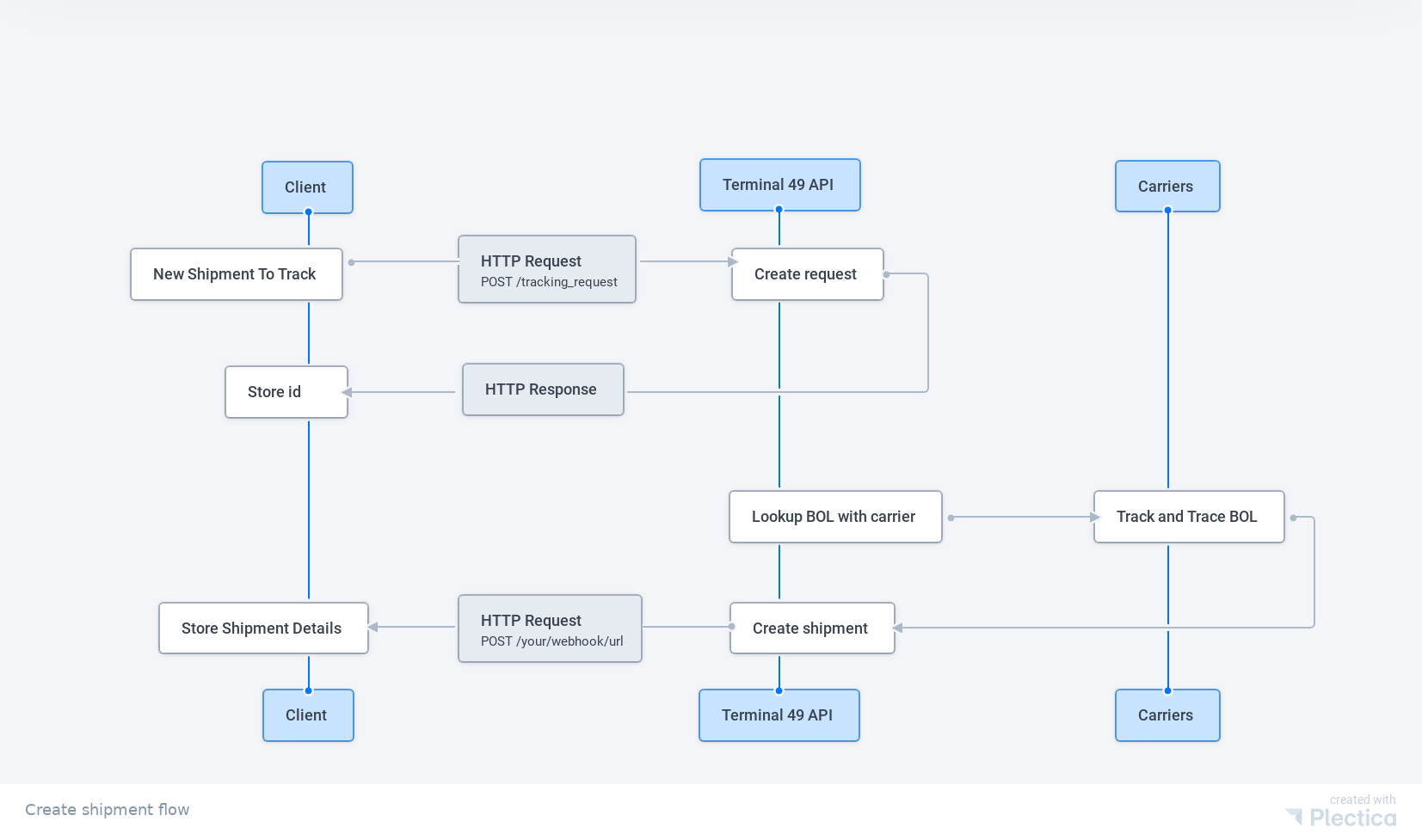
## What happens after you create a tracking request
Terminal49 works asynchronously:
1. You send a tracking request with a shipment identifier and SCAC.
2. Terminal49 accepts the request and returns a `tracking_request` with `status: "pending"`.
3. Terminal49 monitors the carrier and creates shipment and container records as data becomes available.
4. You list shipments and containers at any time, or receive updates through a webhook.
A webhook is a callback URL that Terminal49 sends `POST` requests to whenever tracking data changes: you receive `tracking_request.succeeded` when the shipment is created, or `tracking_request.failed` if there is a problem. You will register a webhook in [step 4 of this path](/api-docs/getting-started/receive-status-updates). Until then, you can poll the tracking request as shown below.
 ## Check your tracking request status
If you have not set up a webhook yet, poll the Tracking Requests endpoint to check whether your request succeeded or failed. Replace `YOUR_API_KEY` with your API key.
```bash theme={null}
curl "https://api.terminal49.com/v2/tracking_requests" \
-H "Content-Type: application/vnd.api+json" \
-H "Authorization: Token YOUR_API_KEY"
```
To check a single request, append the `id` from the create response: `GET /v2/tracking_requests/{id}`.
## Troubleshooting
**Tracking request troubleshooting**
The most common issue people encounter is that they are entering the wrong number.
Check that you are entering a Bill of Lading number, booking number, or container number — not an internal reference from your company or freight forwarder. Verify the number by going to the carrier's website and tracking the shipment with it. If that works and the SCAC is supported by Terminal49, you should be able to track it through the API.
If you are unsure of the correct SCAC, try the [Infer Tracking Number](/api-docs/in-depth-guides/auto-detect-carrier) endpoint first.
Sometimes the issue is on the shipping line's side. Temporary network problems, unpopulated manifests, and other issues can occur. See [Tracking Request Retrying](/api-docs/useful-info/tracking-request-retrying) for how Terminal49 handles these cases.
You can always email us at [support@terminal49.com](mailto:support@terminal49.com) if you have persistent
issues.
## Next up: get your shipments
Now that you've made a tracking request, the next step is to list your shipments and retrieve the tracking data.
Retrieve the shipment and container records Terminal49 created for you.
See [How to initiate shipment tracking on
Terminal49](https://help.terminal49.com/en/articles/8074102-how-to-initiate-shipment-tracking-on-terminal49)
for other ways of initiating shipment tracking.
## Check your tracking request status
If you have not set up a webhook yet, poll the Tracking Requests endpoint to check whether your request succeeded or failed. Replace `YOUR_API_KEY` with your API key.
```bash theme={null}
curl "https://api.terminal49.com/v2/tracking_requests" \
-H "Content-Type: application/vnd.api+json" \
-H "Authorization: Token YOUR_API_KEY"
```
To check a single request, append the `id` from the create response: `GET /v2/tracking_requests/{id}`.
## Troubleshooting
**Tracking request troubleshooting**
The most common issue people encounter is that they are entering the wrong number.
Check that you are entering a Bill of Lading number, booking number, or container number — not an internal reference from your company or freight forwarder. Verify the number by going to the carrier's website and tracking the shipment with it. If that works and the SCAC is supported by Terminal49, you should be able to track it through the API.
If you are unsure of the correct SCAC, try the [Infer Tracking Number](/api-docs/in-depth-guides/auto-detect-carrier) endpoint first.
Sometimes the issue is on the shipping line's side. Temporary network problems, unpopulated manifests, and other issues can occur. See [Tracking Request Retrying](/api-docs/useful-info/tracking-request-retrying) for how Terminal49 handles these cases.
You can always email us at [support@terminal49.com](mailto:support@terminal49.com) if you have persistent
issues.
## Next up: get your shipments
Now that you've made a tracking request, the next step is to list your shipments and retrieve the tracking data.
Retrieve the shipment and container records Terminal49 created for you.
See [How to initiate shipment tracking on
Terminal49](https://help.terminal49.com/en/articles/8074102-how-to-initiate-shipment-tracking-on-terminal49)
for other ways of initiating shipment tracking.